DocsBlender manualUser InterfaceTools & Operators
Operators
From the Blender 5.2 LTS Manual by the Blender Documentation Team, adapted for Angelo · CC BY-SA 4.0
Operators execute an action the moment they’re activated, which makes them different from tools (which require some sort of input). Operators can be started from Operator Buttons, Popup Menus, or Menu Search. Examples of operators include adding a new object, deleting it, or setting its shading to smooth.
Operator Properties
Most operators have properties that can be adjusted to refine their result. First run the operator (which will use its default settings), then adjust the properties in the Adjust Last Operation region.
Modal Operators
Modal operators exist as a concept in between Tools and regular operators. They require some sort of interactive input.
Esc, RMB |
Cancels a modal operator. |
Return, LMB |
Confirms the action of a modal operator. |
Slider Operators
Slider operators are used to interactively adjust a percentage value in the editor’s Header.
You can adjust the percentage by dragging the slider left or right. This can be made coarser (snapping in 10% increments) by holding Ctrl and more precise by holding Shift. For some sliders, you can toggle “overshoot” with E, which lets you go beyond the 0-100% range.
Searching for Operators
Menu Search
Reference
- Mode:
All Modes
- Menu:
- Shortcut:
F3
The Menu Search pop-up lets you search Blender’s interface for a certain operator and execute it. First narrow down the list by typing (part of) the operator’s name, then either click the operator with LMB, or navigate to it with Down and Up and activate it with Return.
Apart from the operator names, the pop-up also shows the menus where they’re located.
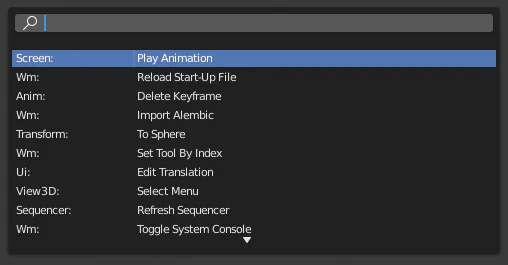
The Menu Search pop-up.
See also
The Spacebar Action option in the Preferences.
Operator Search
Reference
- Mode:
All Modes
- Menu:
When Developer Extras are activated, the Operator Search can be accessed from the Edit menu in the Topbar. This menu searches all Operators within Blender, even if they are not exposed in a menu. This is useful for Python developers for testing purposes. Blender might also include a few advanced operators that are not exposed in a menu and can only be accessed via this search menu.
See also
The User Preferences has an option to change how the search results are scored.