DocsBlender manualUser InterfaceTools & Operators
Selecting
From the Blender 5.2 LTS Manual by the Blender Documentation Team, adapted for Angelo · CC BY-SA 4.0
Added by Angelo Notes marked like this are ours: they say where Angelo differs from stock Blender.
By default, Blender uses LMB to select items. This can be changed to RMB in the Preferences.
Blender has several selection tools that can be used across the different editors.
Note
Some editors deviate from the keyboard shortcuts shown below. For example, most editors use Shift-LMB to add a single item to the selection, but the Outliner uses Ctrl-LMB. Similarly, most editors use Ctrl-RMB for performing a Lasso Select, but node editors use Ctrl-Alt-LMB.
Most selection tools come in two variants, where one variant is available in the Toolbar and the other in the Select menu. While the variants’ names are almost identical (such as Select Box in the Toolbar versus Box Select in the menu), the way they work is a bit different. New users coming from other applications will find the Toolbar variants to be the most familiar.
Toolbar Selection Tools
All the Toolbar selection tools behave the same when clicking an item: they select it (and deselect any previously selected items). If you hold Shift while clicking, the item will be added to the selection (if it’s not selected) or removed from the selection (if it is selected).
What makes the tools different is what happens when you drag.
Tweak
Reference
- Tool:
- Shortcut:
W
Dragging an item will move it around.
Select Box
Reference
- Tool:
- Shortcut:
W
Dragging will create a rectangle, and select all the items that are partially or completely inside it once you release. (Any other items will be deselected.)
Holding Shift while dragging will add the items to the selection. Holding Ctrl will remove them.
While dragging, you can additionally hold Spacebar to move the rectangle around with the mouse.
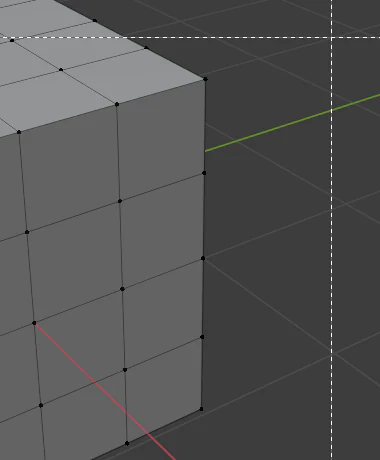
Start. |
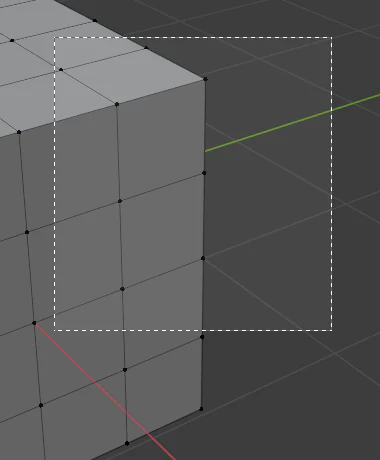
Selecting vertices. |
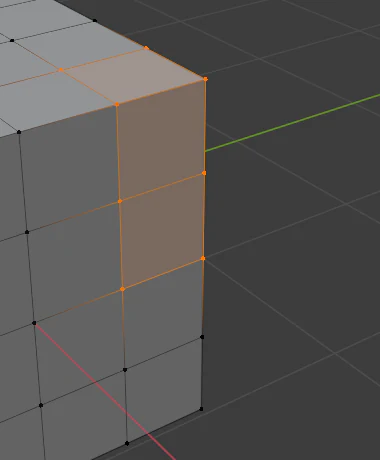
Complete. |
Select Circle
Reference
- Tool:
- Shortcut:
W
Dragging will select all the items which the circle passed over. Items which you didn’t pass over will be deselected.
Holding Shift while dragging will add the items to the selection. Holding Ctrl will remove them.
You can change the radius of the circle in the tool settings (which can be found in the area header, the Tool tab of the Sidebar N, or the Active Tool tab of the Properties editor).
Note
In Object Mode: unlike Select Box, which selects objects as soon as the box covers any part of their geometry, Select Circle only selects objects if the circle passes over their origin point. The origin is shown as an orange dot for selected objects but is invisible for unselected ones, unless “Origins (All)” is enabled in the Viewport Overlays.
This difference in behavior does not apply to the other modes (like Edit Mode and Pose Mode).
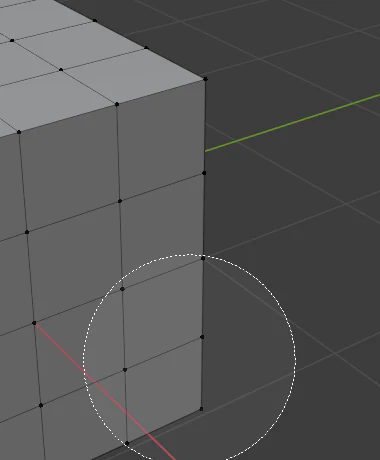
Start. |
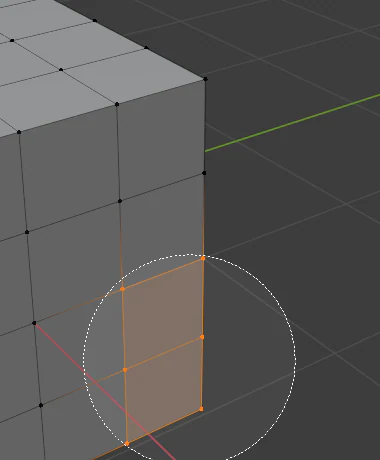
Selecting vertices. |
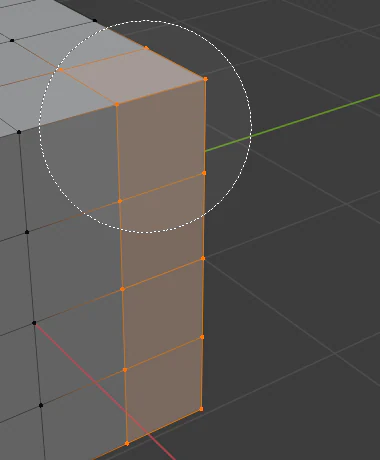
Complete. |
Select Lasso
Reference
- Tool:
- Shortcut:
W
Dragging will create a freeform shape, and select all the items inside it once you release. (Any other items will be deselected.)
Holding Shift while dragging will add the items to the selection. Holding Ctrl will remove them.
While dragging, you can additionally hold Spacebar to move the shape around with the mouse.
Note
Select Lasso behaves the same as Select Circle in that it only looks at origin points in Object Mode.
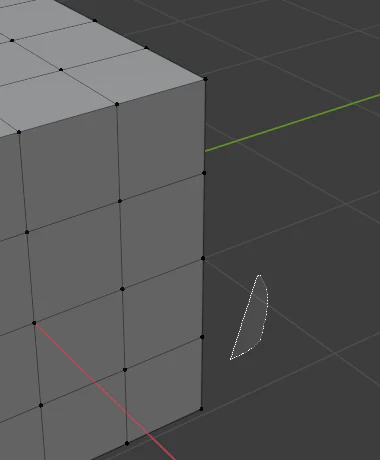
Start. |
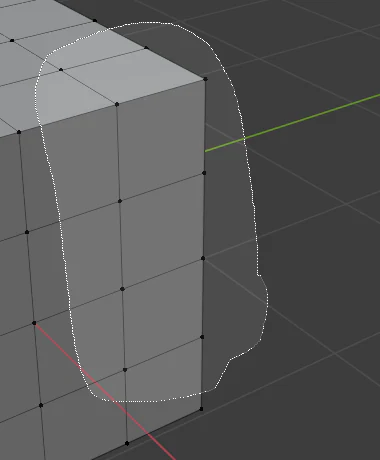
Selecting vertices. |
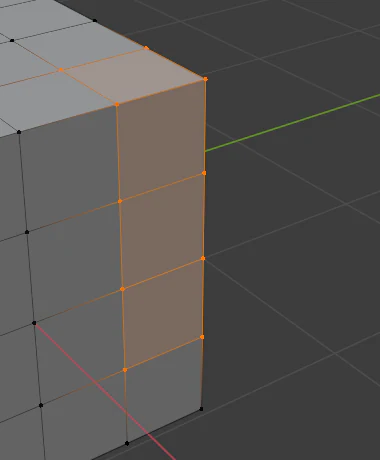
Complete. |
Selection Modes
Reference
- Tool:
Select Tools
- Panel:
Each of the Toolbar selection tools has a mode to configure how it interacts with existing selections. Note that not every tool supports all of these modes.
- Set
Sets a new selection (the previous selection is discarded). This is the default.
- Extend
Adds newly selected items to the existing selection.
- Subtract
Removes newly selected items from the existing selection.
- Invert Ctrl-I
Inverts the selection (unselected items become selected and vice versa).
- Intersect
Selects items that intersect with the existing selection.