DocsBlender manualUser InterfaceUI Elements
Color Palette
From the Blender 5.2 LTS Manual by the Blender Documentation Team, adapted for Angelo · CC BY-SA 4.0
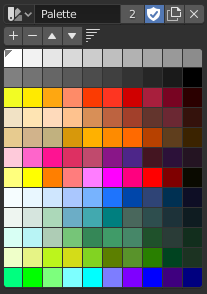
Color Palette.
Color Palettes are a way of storing a brush’s color so that it can be used at a later time. This is useful when working with several colors at once.
- Palette
A Data-Block Menu to select a palette.
- (New Palette Color)
Adds the current brush’s primary Color to the palette.
- (Delete Palette Color)
Removes the currently selected color from the palette.
- / (Move Palette Color)
Moves the selected color up/down one position.
- (Sort By)
Sort Colors by Hue, Saturation, Value, Luminance.
- Color List
Each color that belongs to the palette is presented in a list. Clicking on a color will change the brush’s primary Color to that color.
Shortcuts
Ctrl-LMB open the color picker to change color. See Color Picker.
Backspace reset the value.