DocsBlender manualUser InterfaceUI Elements
Color Ramp Widget
From the Blender 5.2 LTS Manual by the Blender Documentation Team, adapted for Angelo · CC BY-SA 4.0
Color Ramps specify a color gradient based on color stops. Each stop has a position and a color. The gradient is then calculated as the interpolation between these stops using the chosen interpolation method.
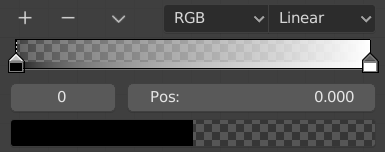
Color ramp.
Controls
Adds a new stop between the selected stop and the one before it.
Deletes the selected color stop.
- Tools
Contains more operators for the color ramp.
- Flip Color Ramp
Flips the gradient, mirroring the positions of the stops.
- Distribute Stops from Left
Distribute the stops so that every step has the same space to the right. This is mostly useful when used with Constant interpolation mode.
- Distribute Stops Evenly
Distribute the stops so that all neighbors have the same space between them.
- Eyedropper E
An Eyedropper to sample a color or gradient from the interface to be used in the color ramp.
- Reset Color Ramp
Resets the color ramp to its default state.
- Color Mode
Selection of the Color Model used for interpolation.
- RGB:
Blends color by mixing each color channel and combining.
- HSV/HSL:
Blends colors by first converting to HSV or HSL, mixing, then combining again. This has the advantage of maintaining saturation between different hues, where RGB would de-saturate. This allows for a richer gradient.
- Color Interpolation
The interpolation method to use across the ramp.
- RGB
- B-Spline:
Uses a B-spline interpolation for the color stops.
- Cardinal:
Uses a cardinal interpolation for the color stops.
- Linear:
Uses a linear interpolation for the color stops.
- Ease:
Uses an ease interpolation for the color stops.
- Constant:
Uses a constant interpolation for the color stops.
- HSV/HSL
- Clockwise:
Clockwise interpolation around the HSV/HSL wheel.
- Counter-Clockwise:
Counterclockwise around the HSV/HSL wheel.
- Near:
Nearest route around the wheel.
- Far:
Furthest route around the wheel.
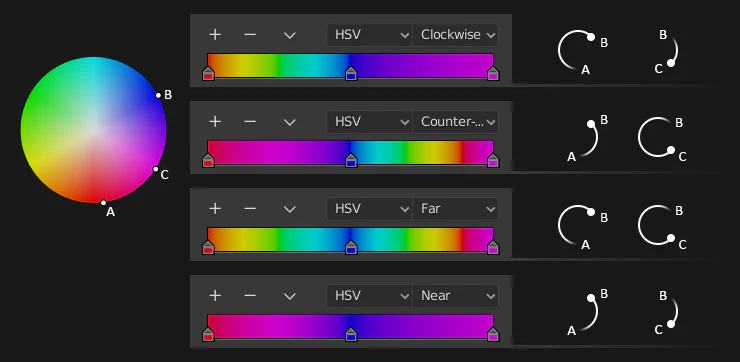
HSV and HSL interpolation options.
- Active Color Stop
Index of the active color stop (shown as a dashed line). Offers an alternative way of selecting a stop in case it’s so close to others that it’s hard to select it directly.
- Position
This slider controls the position of the selected color stop in the range.
- Color
A color field where you can specify the color and alpha of the selected stop.
Shortcuts
LMB (drag) moves color stops.
Ctrl-LMB (click) adds a new color stop.