Skip to content

Docs/Camera Look

A lens and film look

New in 2.1.0 Give the camera the look of a real lens and film stock in one click: distortion, a natural vignette, bloom and streaks, halation, a film grade and grain, and bokeh shape. It works with every render engine and shows live in the 3D view's camera view.

Updated
25 November 2026
Next
Render engines · Video from your camera

Angelo guideBlender manual

Guide

  1. Getting started

Start

  1. Coming from Blender
  2. What Angelo adds to Blender
  3. Find every feature
  4. Director Mode

The chat

  1. The chat and its modes
  2. Models and AI Providers
  3. Stay in control
  4. Plan first
  5. Goals
  6. Mark up a picture
  7. Rules and folders
  8. Learn as you work
  9. Start from a base mesh
  10. Parallel edit

Make

  1. Media Studio
  2. Video generation
  3. Video from your camera
  4. Photo to 3D model
  5. AI Render
  6. Angelo Library
  7. Scatter
  8. Generative AI and Flows

Render

  1. Rendering on the GPU
  2. Render engines
  3. Camera Look
  4. Render a region
  5. Bake every map

Model and check

  1. Retopology
  2. Shape Cut
  3. UV Layout
  4. Splats to mesh
  5. Select Through
  6. Tension maps
  7. UV checker

Rig and game engines

  1. Rigging for game engines
  2. Game physics
  3. Game engine link
  4. Web export

Connect

  1. Claude Code and Codex
  2. Teams
  3. Your library in other AI apps
  4. Enterprise setup

Reference

  1. Updates and What's New
  2. Keyboard shortcuts
  3. Blender requests

Contents

  1. 01Give a camera a look, step by step
  2. 02What a look is made of
  3. 03Match exposure
  4. 04Take it off
Contents · 4 sections
  1. 01Give a camera a look, step by step
  2. 02What a look is made of
  3. 03Match exposure
  4. 04Take it off

At a glance

  • Chat bar + ▸ Render ▸ Camera Look, or F3 ▸ Camera Look.
  • Seven looks: Clean, Vintage, Anamorphic, Documentary, Warm Portrait, Bleach Bypass and Noir.
  • Take Off removes the look and puts back what it replaced.

Where to find it

Camera look (lens and film)
Chat bar + menu ▸ Render tools ▸ Camera Look or F3 ▸ Camera Look: a card with the look, focus breathing, the camera view's compositor, Match exposure (shutter and ISO in stops) and Take Off.

Or ask the agent in the chat where to find it: it answers from the same list.

01Give a camera a look, step by step#

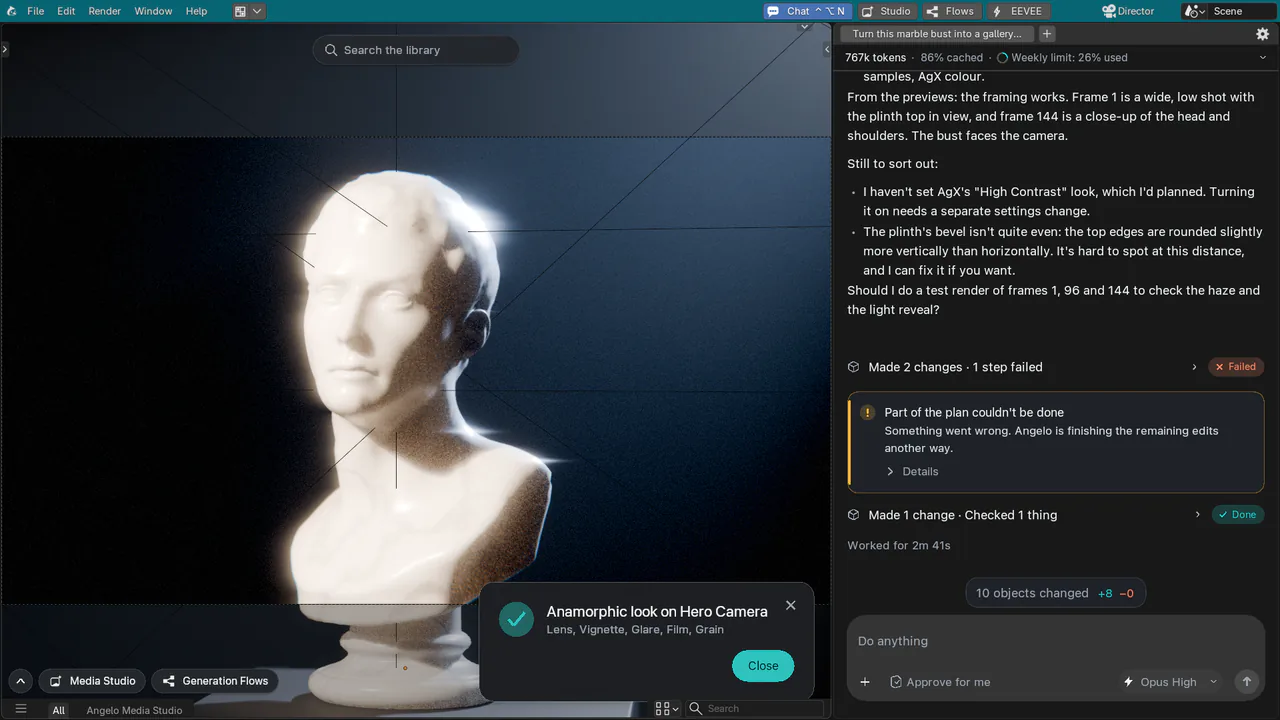
The camera view of a marble bust with Camera Look's Anamorphic look: glow, streaks, vignette and grain, and the card “Anamorphic look on Hero Camera · Lens, Vignette, Glare, Film, Grain”.
Captured in Angelo 2.1.0, the published app, Camera Look in the 3D view
  1. Make sure the scene has a camera; Camera Look works on the scene's camera.
  2. Click + in the chat bar, open Render and choose Camera Look. Its card opens.
  3. Choose a Look. Look through the camera (Numpad 0): with Show in the camera view on, the 3D view runs the compositor, so you see the look as it will render.
  4. Turn on Focus breathing if you want the view to narrow as focus comes close, as real lenses do.
  5. Press Apply. Render as usual with any engine.

02What a look is made of#

StageWhat it does
LensBarrel or pincushion distortion and colour fringing.
VignetteDarkens the corners as a real lens does, worked out from your camera's focal length: a wide lens darkens more than a long one.
GlareBloom, the horizontal streaks of anamorphic lenses, and ghosts.
HalationThe warm glow film gives around bright highlights.
FilmExposure, white balance, contrast, saturation and faded blacks.
GrainFilm grain sized to the frame, so a 4K render has the same grain as an HD one.

A look also sets the camera's bokeh: the number of aperture blades, and oval bokeh for Anamorphic. All of it is Blender's own camera settings and one compositor node group, so you can open and change it.

03Match exposure#

With Match exposure on, exposure follows the camera like a real one: change the Shutter or ISO on the card, and the picture gets brighter or darker by the right number of stops from what the scene is lit for.

04Take it off#

Take Off on the card, or the Clean look, removes the look and restores the camera and compositor settings it replaced.

PreviousRender enginesNextRender a region