Skip to content

Docs/Mark up a picture

Show it, don't describe it

New in 2.1.0 “Make that bit smaller, no, the other one” is hard to say in words. Open a picture full size, draw on it, pin numbered comments where you mean them, and send it. The agent gets the marked picture, the original and every comment with its place.

Updated
25 November 2026
Next
Pictures and files · Goals

Angelo guideBlender manual

Guide

  1. Getting started

Start

  1. Coming from Blender
  2. What Angelo adds to Blender
  3. Find every feature
  4. Director Mode

The chat

  1. The chat and its modes
  2. Models and AI Providers
  3. Stay in control
  4. Plan first
  5. Goals
  6. Mark up a picture
  7. Rules and folders
  8. Learn as you work
  9. Start from a base mesh
  10. Parallel edit

Make

  1. Media Studio
  2. Video generation
  3. Video from your camera
  4. Photo to 3D model
  5. AI Render
  6. Angelo Library
  7. Scatter
  8. Generative AI and Flows

Render

  1. Rendering on the GPU
  2. Render engines
  3. Camera Look
  4. Render a region
  5. Bake every map

Model and check

  1. Retopology
  2. Shape Cut
  3. UV Layout
  4. Splats to mesh
  5. Select Through
  6. Tension maps
  7. UV checker

Rig and game engines

  1. Rigging for game engines
  2. Game physics
  3. Game engine link
  4. Web export

Connect

  1. Claude Code and Codex
  2. Teams
  3. Your library in other AI apps
  4. Enterprise setup

Reference

  1. Updates and What's New
  2. Keyboard shortcuts
  3. Blender requests

Contents

  1. 01Mark up the 3D view, step by step
  2. 02Other ways to open it
  3. 03The tools
  4. 04Your scene stays safe
Contents · 4 sections
  1. 01Mark up the 3D view, step by step
  2. 02Other ways to open it
  3. 03The tools
  4. 04Your scene stays safe

At a glance

  • Click a picture attached in the message box, or choose + ▸ Mark up a picture…. With no picture attached, it captures the 3D view as it is now.
  • Pen, arrows, ellipses, rectangles and text in six colours; numbered comments on a point or a region; crop and scale.
  • Nothing reaches the agent until you send it.

Where to find it

Mark up a picture
Click a picture in the chat's message box, or chat bar + menu ▸ Mark up a picture... (the newest picture, or the 3D view as it is now).

Or ask the agent in the chat where to find it: it answers from the same list.

01Mark up the 3D view, step by step#

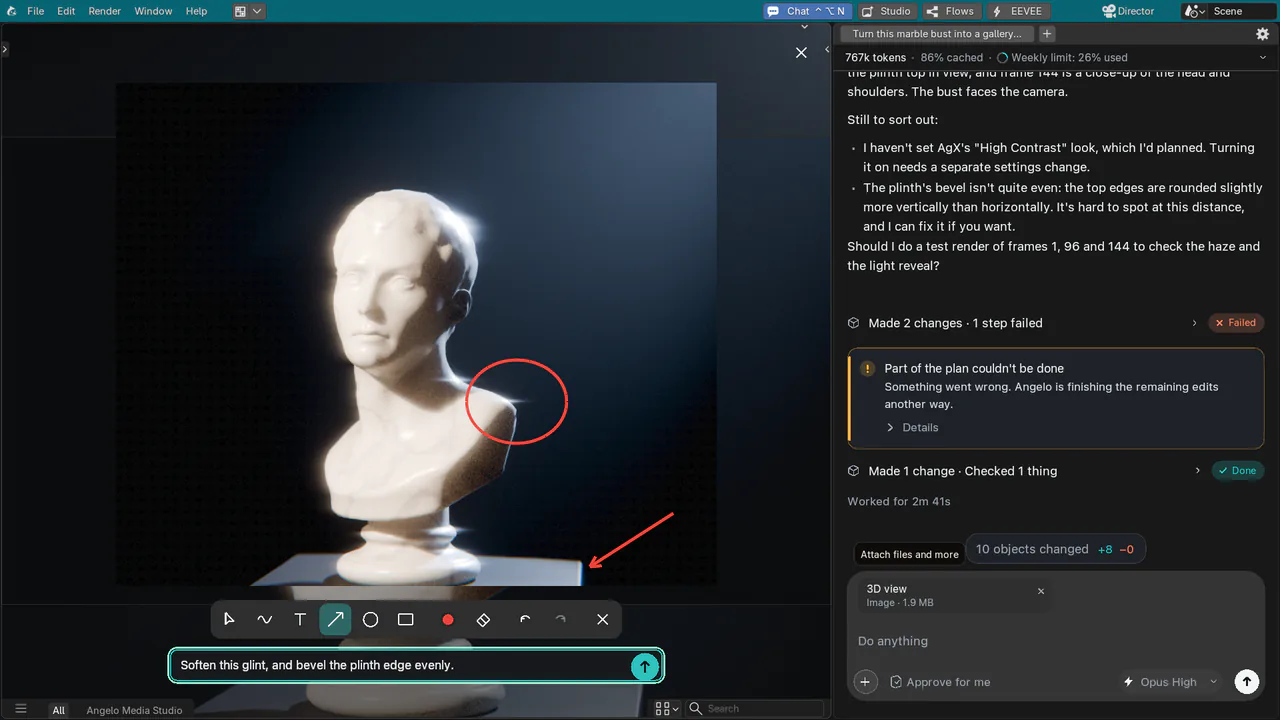
Mark up a picture open over the 3D view: a capture of a lit marble bust with a red circle around a glint and an arrow at the plinth's edge, the drawing tools below, and the instruction “Soften this glint, and bevel the plinth edge evenly.”
Captured in Angelo 2.1.0, the published app, Mark up a picture…
  1. Set up the 3D view to show what you want to talk about, in Solid or Material Preview shading.
  2. In the chat bar, click + and choose Mark up a picture…, next to Attach. Angelo captures the 3D view (the scene only, never the buttons over it), attaches it and opens it full size over the 3D view.
  3. Choose Markup and draw: circle the part, add an arrow, write a word.
  4. Choose Comment, then click a point to pin a numbered comment, or drag over a region. Type your note in the field that opens.
  5. Write what you want in Add instructions… and press its send button. The marked picture goes to the chat as your message.

02Other ways to open it#

  • Click any picture chip in the message box. Its × still removes it.
  • + ▸ Mark up a picture… with pictures already attached opens the newest one.
  • The agent can open it for you on a picture of the chat, or on the 3D view, after a card you approve. You draw and send; the agent never draws.

03The tools#

ModeWhat you do
ViewZoom with the wheel or trackpad, drag to pan, F to fit the picture.
MarkupSelect and move, pen, text, arrow, ellipse, rectangle and eraser, in six colours and three widths, with Undo, Redo and Done.
CommentA click pins a numbered comment; a drag comments on a region. A pin you leave without a note is taken back.
ResizeDrag to crop, choose 100, 75, 50 or 25%, and make the resized picture as a new one. The bar says the size it will make.

Keys while the viewer has the keyboard: V select, P pen, T text, A arrow, O ellipse, R rectangle, E eraser, C comment; ⌘/Ctrl + Z undoes a mark, Esc closes. While you type in a field, they are just letters.

A picture holds up to 200 marks and 20 comments.

04Your scene stays safe#

  • The viewer covers the 3D view, so keys pressed over it never reach the scene hidden underneath; Save and Quit still work.
  • The chat and the rest of the window stay usable while it is open.
  • If something goes wrong in the viewer, it closes, keeps your drawing as a draft and says so in the chat.
PreviousGoalsNextRules and folders